

How to Manage Contact Records Like a Pro with SimplySync
How to Manage Contact Records Like a Pro with SimplySync
Managing contact records is a crucial part of running a small business. With the all-new SimplySync Contact Detail Page, you can now view every customer interaction in one clean, organized location. This guide will walk you through the practical changes, features, and benefits of the new interface, helping you boost productivity and keep your team aligned.
What This SimplySync Tool Does
The new Contact Detail Page offers a faster, cleaner, and smarter way to manage your customer interactions. It replaces endless scrolling with a three-panel layout, surfaces critical data at a glance, and remembers your personal view preferences for a truly streamlined CRM experience.
Why It Matters
Keeping your team informed and your data organized is essential for efficient operations. The new interface ensures that all your contact information, conversations, activities, and actions are visible and easy to access. This helps your team stay on the same page and work more efficiently.
When to Use This
Use this guide when you need to manage contact records in SimplySync. It's ideal for scenarios where you want to streamline your workflow, reduce manual data entry, and ensure that your team has quick access to all the information they need. Whether you're updating contact details, tracking conversations, or logging activities, this new interface makes it easier to stay productive and organized.
Key Improvements at a Glance
- Modern design: Faster, consistent, and visually streamlined layout.
- Auto-Save: Changes save automatically when you leave a field — no clicks needed.
- Smart Navigation: Move between contacts using keyboard shortcuts.
- Collapsible panels: Focus on what matters most, and the system remembers your layout.
- Inline associations: View and edit Companies, Opportunities, and Custom Objects right from the contact page.
Left Panel: Contact Information
This is where you’ll find and manage all the key details about your contact. You can edit the profile picture, update contact details such as name, email, phone, and tags, and configure communication preferences using the DND tab. Use the Actions tab for quick utilities like managing Opportunities and workflows.
Center Panel: Conversations & Activities
This section shows the complete history of your interactions with the contact. You can view messages, calls, and notes in one place, track appointments, opportunities, and activity logs, and quickly create new notes or log calls.
Right Panel: Action Modules
The right panel is now fully collapsible and remembers your last active tab. You can access:
- Activities — Track appointments, form submissions, and activity logs.
- Associations — Add, remove, or view Companies and Custom Objects.
- Opportunities — View all opportunities linked to the contact in a dedicated tab.
- Tasks — Create, edit, or check off contact-specific tasks.
- Notes — Log key updates or client discussions.
- Appointments — View upcoming or past meetings.
- Documents — View sent or received files.
- Payments — Track invoices, subscriptions, and transactions.
Auto-Save: How It Works
Auto-Save is one of the most powerful new additions. When enabled, your edits are saved automatically the moment you leave a field — no manual “Save” click required. Admins can enable or disable Auto-Save from Settings → Contacts → Details Tab → Auto-Save toggle.
Keyboard Shortcuts
Save time with these new shortcuts:
- → / ← — Move between contacts in the list.
- ESC — Collapse right panel.
- CTRL + S (or CMD + S) — Manual save (if Auto-Save is off).
Quality of Life Enhancements
Panels and tabs now remember your last state — no need to re-expand or collapse each time. Consistent spacing, typography, and component behavior provide a professional, clutter-free look across all modules.
Frequently Asked Questions
Q: Will Auto-Save apply to everyone in my account?
Yes. Once enabled by an admin, Auto-Save is active for all users in that sub-account.
Q: Can I revert changes saved by Auto-Save?
You can always edit a field again — Auto-Save updates the record immediately, maintaining a complete activity log.
Next Recommended Lesson
After mastering the Contact Detail Page, consider exploring Using Custom Fields to further tailor your SimplySync experience.
Keep learning with SimplySync
Use these SimplySync resources when you want the next step.
See it in action
Use these screenshots as a visual reference while you follow the guide. They are included inside the post for context, while the main blog image stays SimplySync-owned category art.
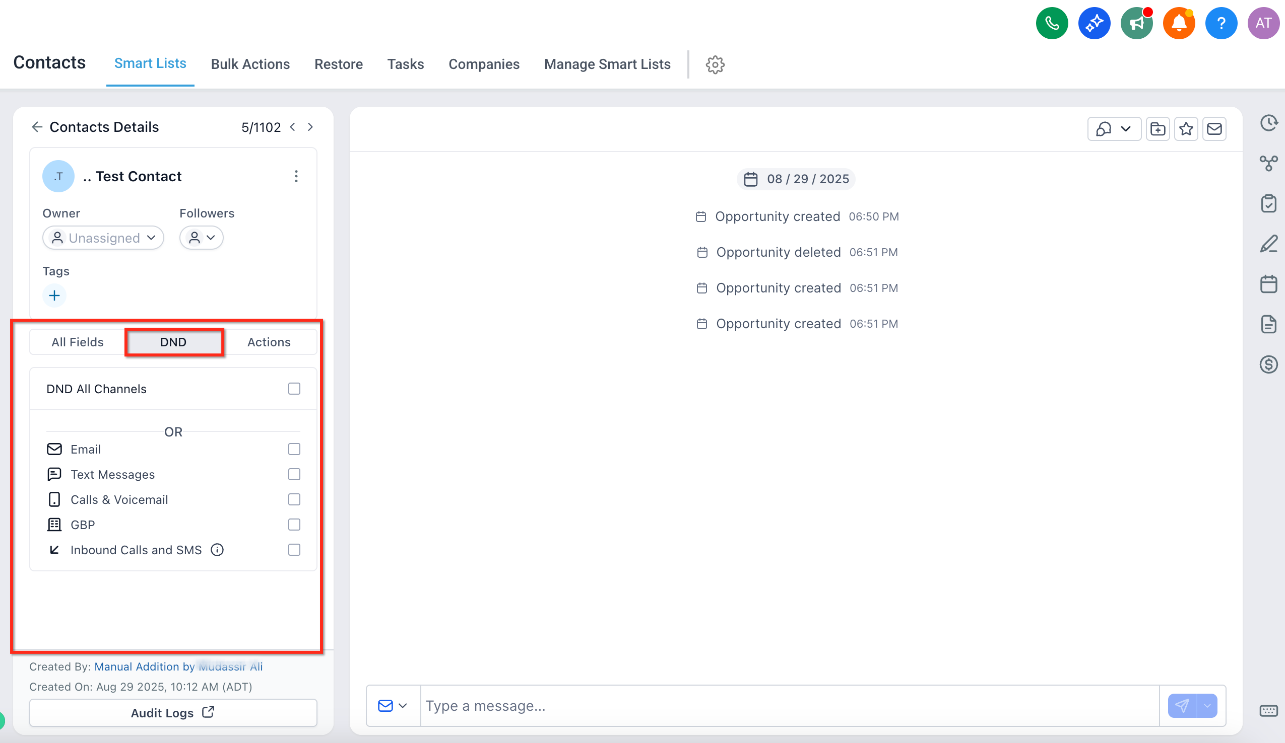
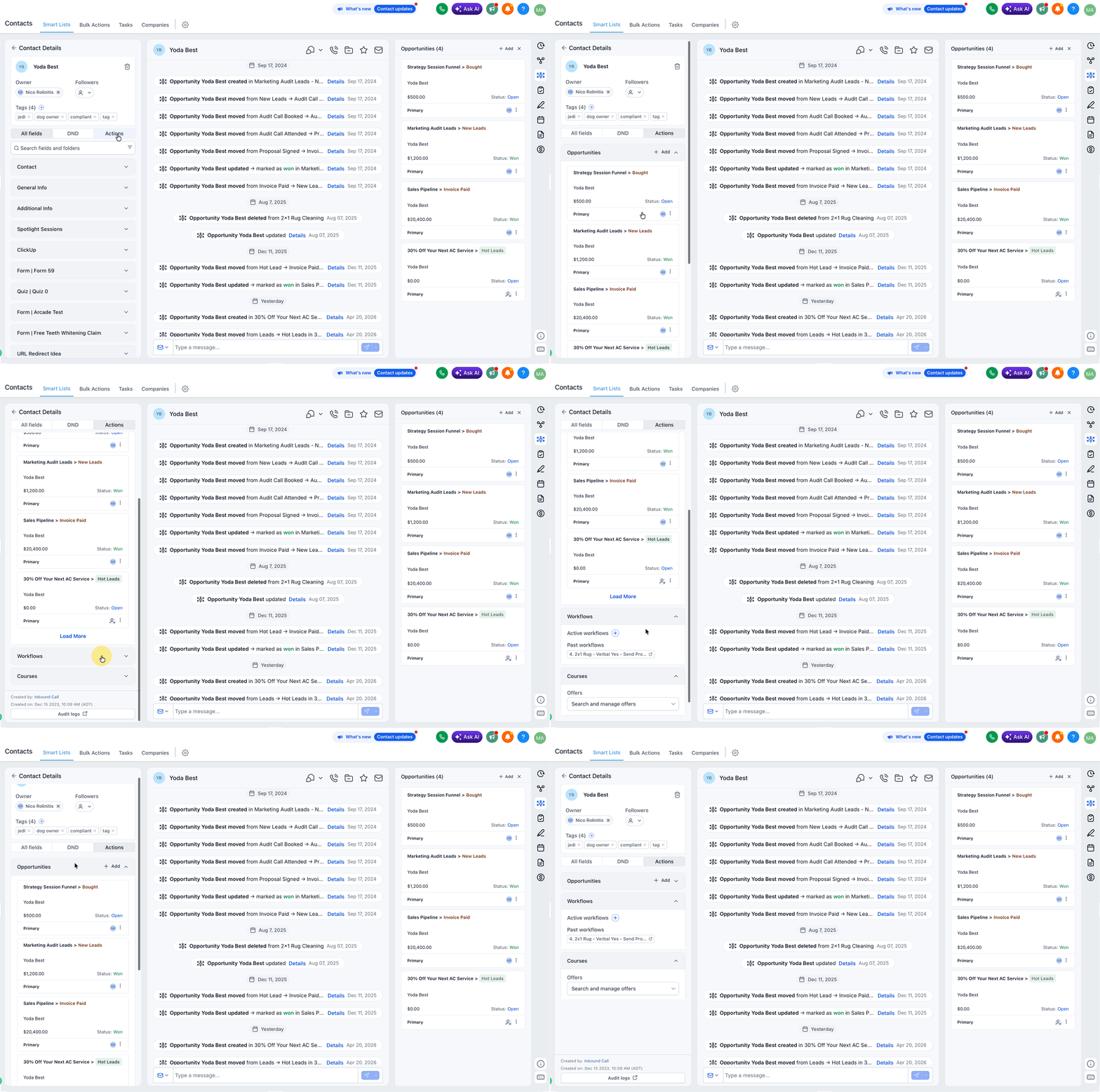
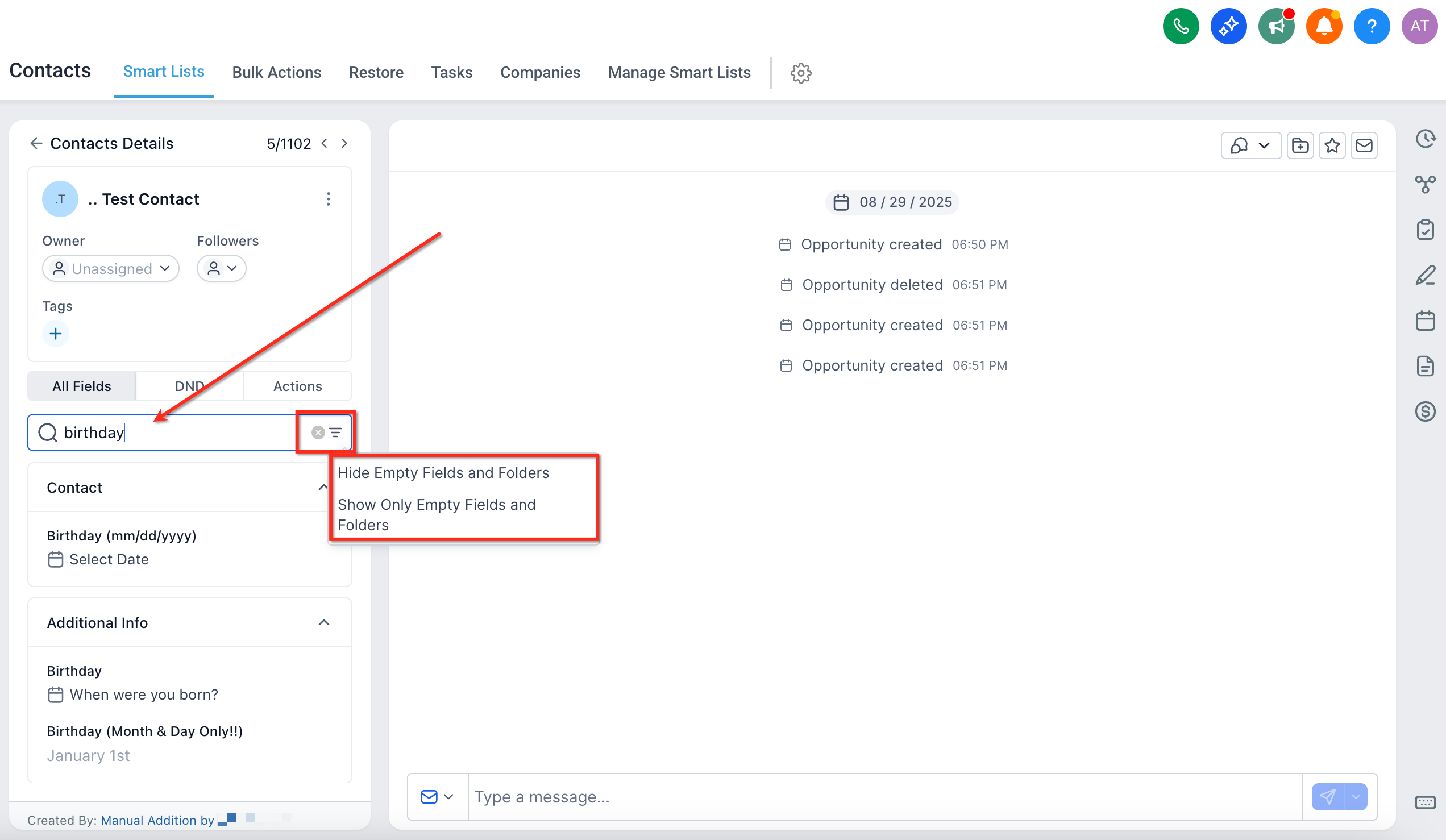
Photo by https://kaboompics.com/ on Pexels.